
Activity Goals Matrix Setup Guide
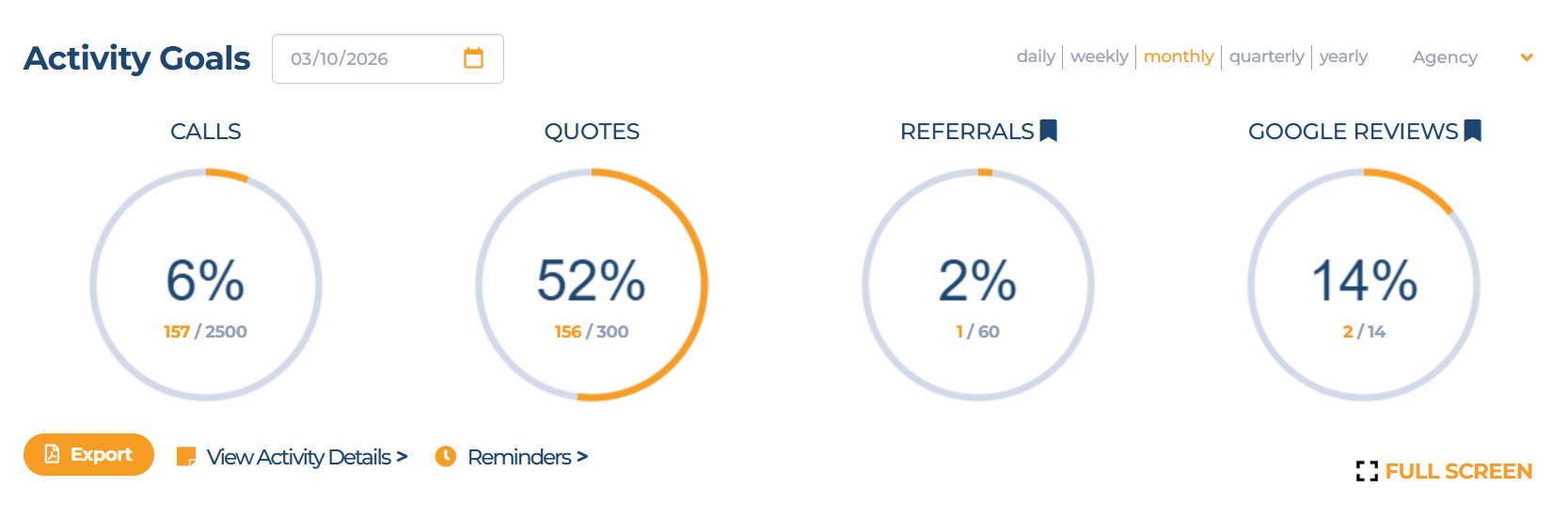
In FrontRunner, there are two ways to track activities:
-
Standard activity goal plans
Manually set up and manage a separate goal plan for each period and/or role
-
Activity Matrix
Set up, manage, and assign all goal plans in one process
For simplicity, we recommend choosing one method and using it consistently for all team members. Mixing both methods can cause confusion when updating goal plans.
This guide explains how to set up and manage activity goals using the Activity Goals Matrix. For information on our standard activity goal plans, click HERE.
Step 1: Create Your Tracking Items
Before setting goals in the matrix, you must first create the tracking items you want to measure (such as calls, quotes, reviews, etc.).
Follow the steps in this guide to create your tracking items: How to Add or Remove Tracking Items
Once all tracking items have been created, you can begin configuring the matrix.
Step 2: Launch the Activity Matrix
Navigate to the Activity Tracking section and click Launch Activity Matrix.
Inside the matrix, you will see:
Tracking items listed on the left side
Team members are displayed across the top
Goal periods for Daily, Weekly, and Monthly, etc.
This layout allows you to set activity goals for each team member in one place.
Step 3: Enter Activity Goals
You can configure goals in two ways:
Option 1: Use Daily Goals with Multipliers
Enter a Daily goal, and the system will use multipliers to automatically calculate the Weekly and Monthly goals.
Option 2: Enter Goals Manually
You can also enter each goal period manually.
Example:
Activity |
Daily |
Weekly |
Monthly |
|---|---|---|---|
Reviews |
1 |
1 |
5 |
In this example, the team member has a monthly goal of 5 reviews, while the daily and weekly fields act as placeholders.
Important Note About How Dials Appear on the Dashboard
For an activity dial to appear on the dashboard, a minimum goal of 1 must be entered for that period.
If the goal is 0, the dial will not display.
If you want the dial to appear, you must enter at least 1 as a placeholder goal.
Step 4: Save and Apply the Matrix
Once all goals are entered and reviewed:
Click Save & Apply
This will automatically assign each team member to the goal plan created in the matrix, and their activity goal dials will appear on their dashboard.
Note: When using the Activity Goals Matrix, avoid manually editing individual goal plans. Making manual changes outside of the matrix can cause the system to calculate or update goals incorrectly. To ensure everything stays aligned, always manage and update activity goals directly through the Matrix when it is enabled.
If you'd prefer FrontRunner Support to update your activity goals on your behalf, we're happy to help. Simply submit a Change Request Form and include the tracking items and goals you’d like assigned to each team member and we'll notify you once complete.
Comments
0 comments
Article is closed for comments.