
Win the Day Widget
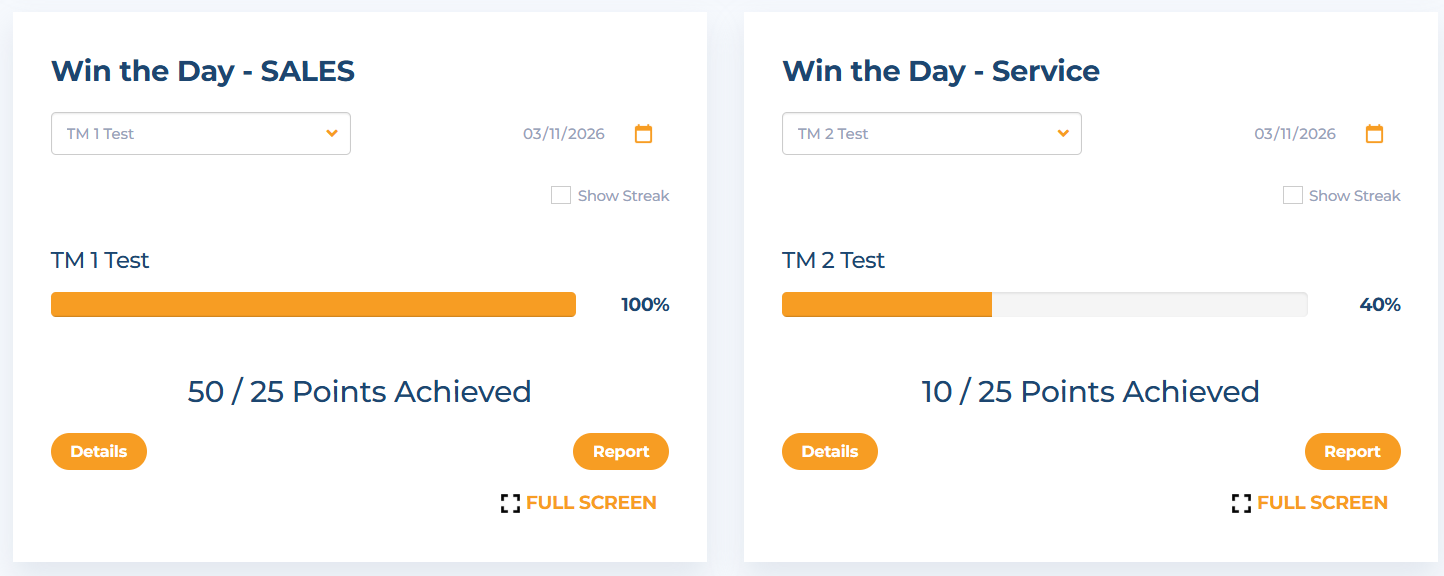
The Win the Day widget helps motivate your team by turning activities or production into point-based goals they can track right on their dashboard. Point values can be assigned to activities, production items, or a combination of both. As team members log their activities and production in FrontRunner, they automatically accumulate points toward this goal.
Once the target point total is reached, the day (or period you’ve selected) is considered “won.”
The Win the Day widget can be configured to track progress over several timeframes:
Daily
Weekly
Monthly
Custom periods
The widget can be used for tracking only, or you can apply bonuses that pay out when the goal is achieved. Win the Day bonuses are paid out on the Bonus tab under "Others".
How to Add the Win the Day Widget
To add the Win the Day widget to your dashboard, complete the following steps:
Go to Agency Setup
Click Step 2: Management Options
In the orange header across the top of the page, click Dashboards
Next to the dashboard you want to edit, click the Settings icon to open the dashboard
To add the widget, scroll to the bottom of the page and click Add Row
Select how many widgets you want on the row and click Add
Click Add Widget
Locate and select the Win the Day widget
Click Save
Customizing the Win the Day Widget
Once the widget is added, you can configure it to match your office goals.
1. Name Your Widget
Give the widget a descriptive name. Examples include:
Win the Day – Sales
Win the Week – Life Apps
Daily Activity Points
2. Set the Target Point Amount
Enter the total number of points required for a team member or team to win the day (or selected period).
3. Choose the Tracking Period
Select whether the widget tracks progress Daily, Weekly, Monthly, or a Custom time period.
4. Assign Activities or Production Items
Add the activities or production goals that should count toward winning the day. Assign a point value to each item, then click Next.
In the example above, a team member “wins the day” once they reach a total of 30 points. This could be achieved by logging 30 calls, 6 quotes, selling 3 Life policies, or any combination of those activities. For example, 20 calls and 2 quotes would also reach the 30-point goal.
5. Select Team Members
Choose the team members who should be assigned to the widget
6. Configure Compensation (Optional)
If desired, you can add a bonus compensation that will be paid when the target point goal is reached. When finished, click Save.
Important Notes
The Win the Day widget cannot currently track either/or scenarios or tiered levels.
If you have questions about configuring the widget or its functionality, please contact support@imafrontrunner.com and our team will be happy to assist.
Comments
0 comments
Article is closed for comments.